Budgets
Adjust or Delete a Budget
Change a budget after you create it, or remove it when it is no longer needed.
When to adjust a budget
Adjust a budget when your spending pattern changes.
Common reasons include:
- A category needs a higher limit
- Income changed and you want to rebalance
- You split one budget into several goals
- You added new recurring spending
When to delete a budget
Delete a budget only when you no longer need it.
Use delete if:
- The budget was created by mistake
- You moved to a new budgeting method
- The budget duplicates another one
Before you change anything
Check the current month first.
Review:
- Category limits
- Assigned amounts
- Spending already tracked
- Any linked goals or planning notes
If the budget is already in use, adjusting it is usually safer than deleting it.
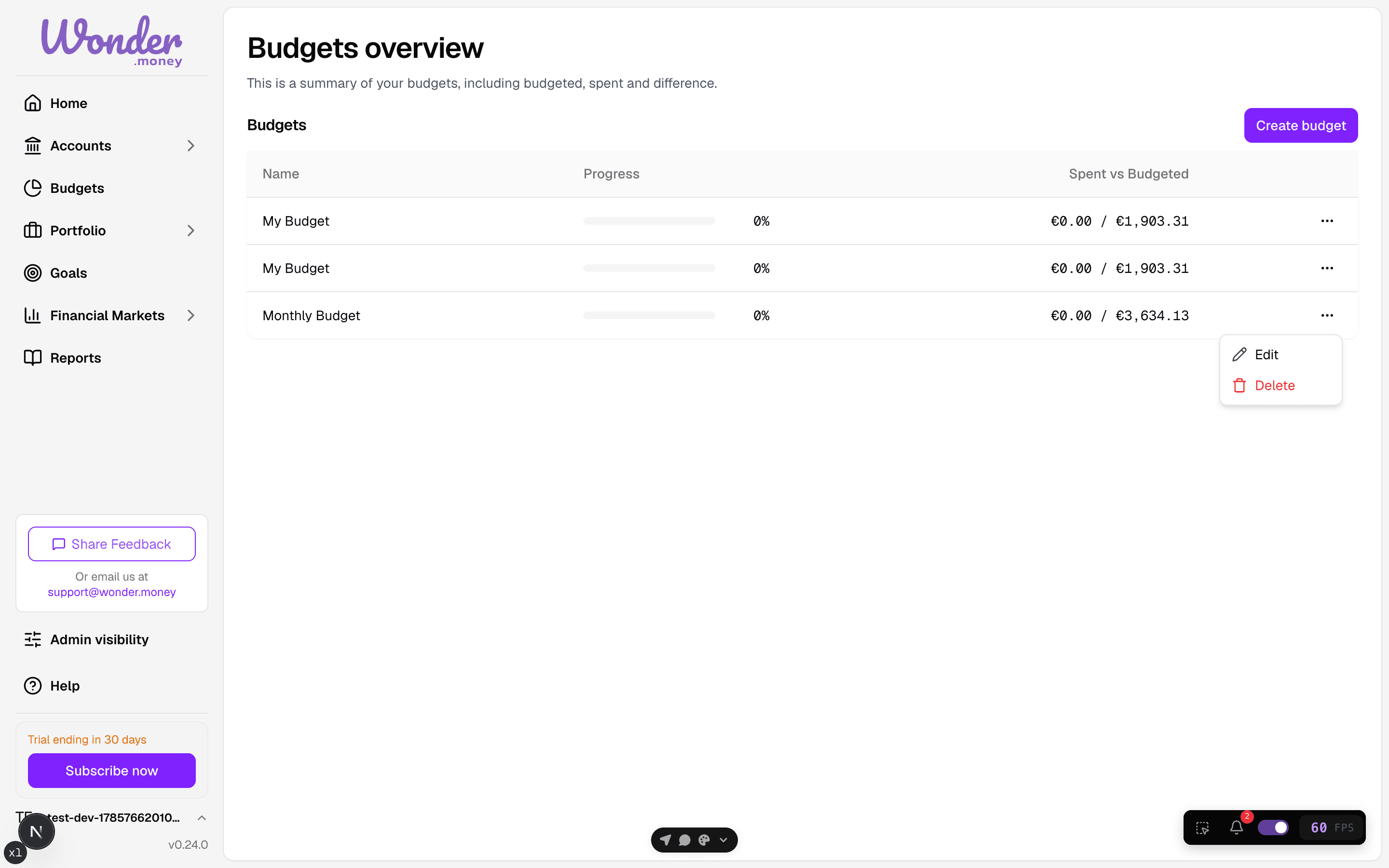
How to adjust a budget
- Open Budgets.
- Select the budget you want to change.
- Update the category limits or totals.
- Save your changes.
- Review the updated summary.
After saving, confirm that the new limits match your intent.
How to delete a budget
- Open the budget details page.
- Select Delete budget.
- Review the confirmation message.
- Confirm deletion.
If the budget cannot be deleted, check whether it still has required data attached.
Common mistakes
- Changing the wrong month
- Deleting a budget instead of editing it
- Leaving a category without a limit by mistake
- Forgetting to review linked spending plans
What to do after the change
Check the budget overview again.
Confirm that:
- Category totals still add up
- Monthly progress looks correct
- Any alerts or warnings make sense
- The budget reflects your current plan